Features
Andrea Reader is a DRM-free, local-first reading app for iPhone and iPad built on three pillars: import your own files, organize your library with full freedom, and customize both reading and the interface to your taste.
Use the navigation on the left to explore each feature area in detail.
General Settings
In General Settings you'll find all the configurations that affect the entire program, so a single adjustment can completely change some aspect of the app.
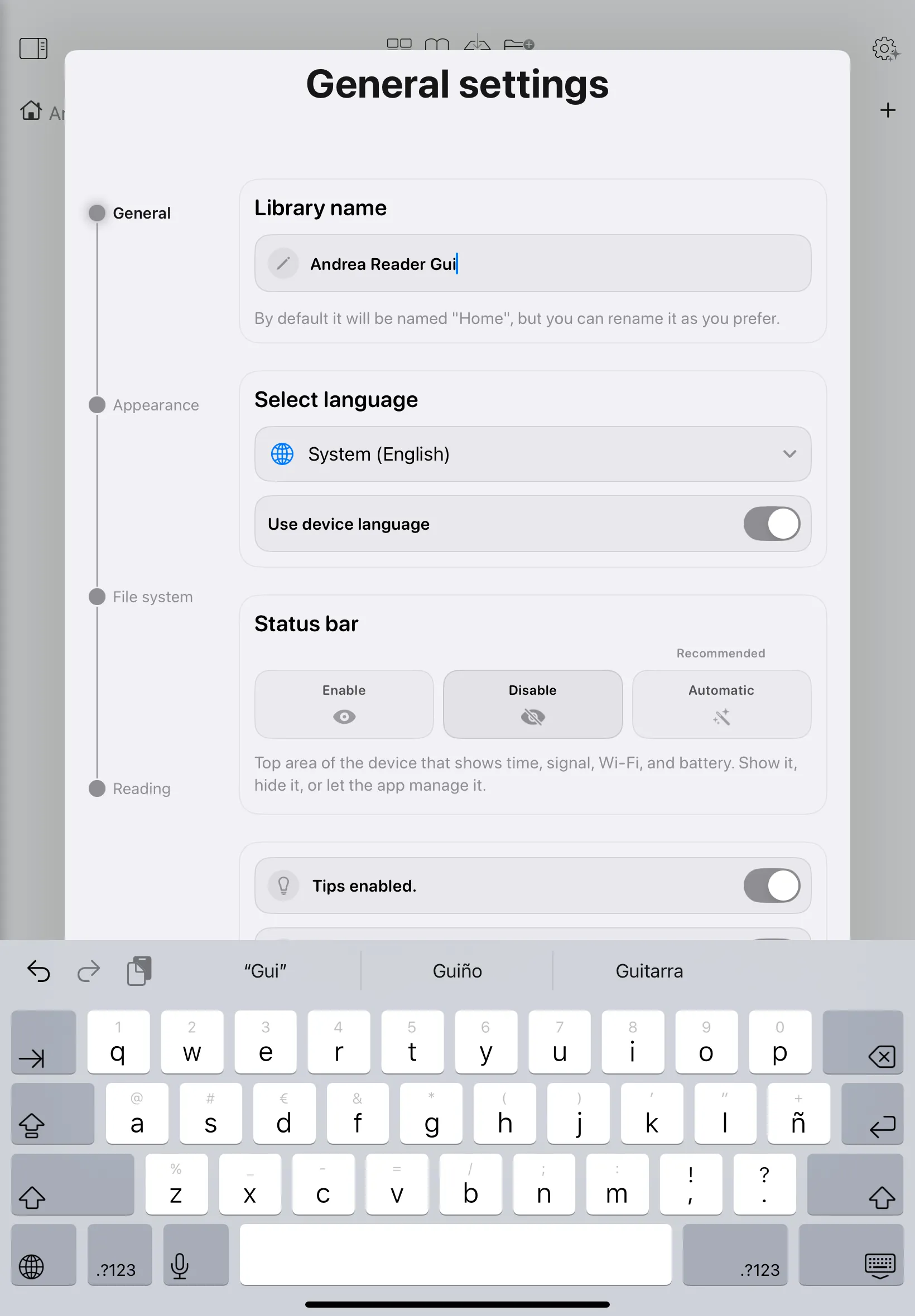
- Collections and Library
You can rename your main library to whatever you prefer. By default it's called "Home", but you can change it freely.
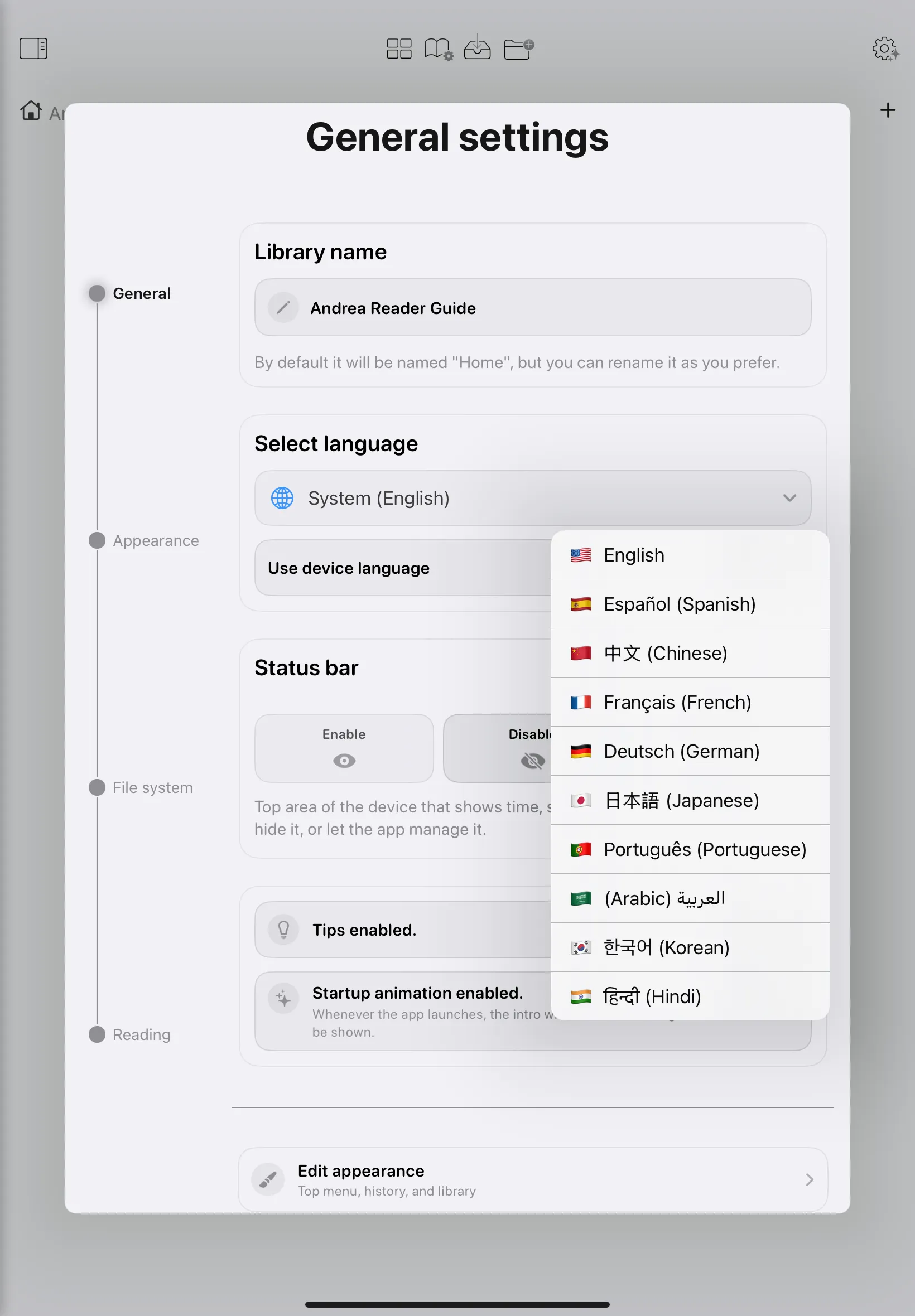
- Language
You can choose from thirteen available languages. The change applies in real time without needing to restart the app.
- Status Bar
Controls the system information that appears at the top (battery, charge, time). It has three modes:
- Disabled: disappears completely.
- Enabled: always visible.
- Automatic: visible in the library, but automatically hides when you enter reading mode so it doesn't get in the way.
Import Modes
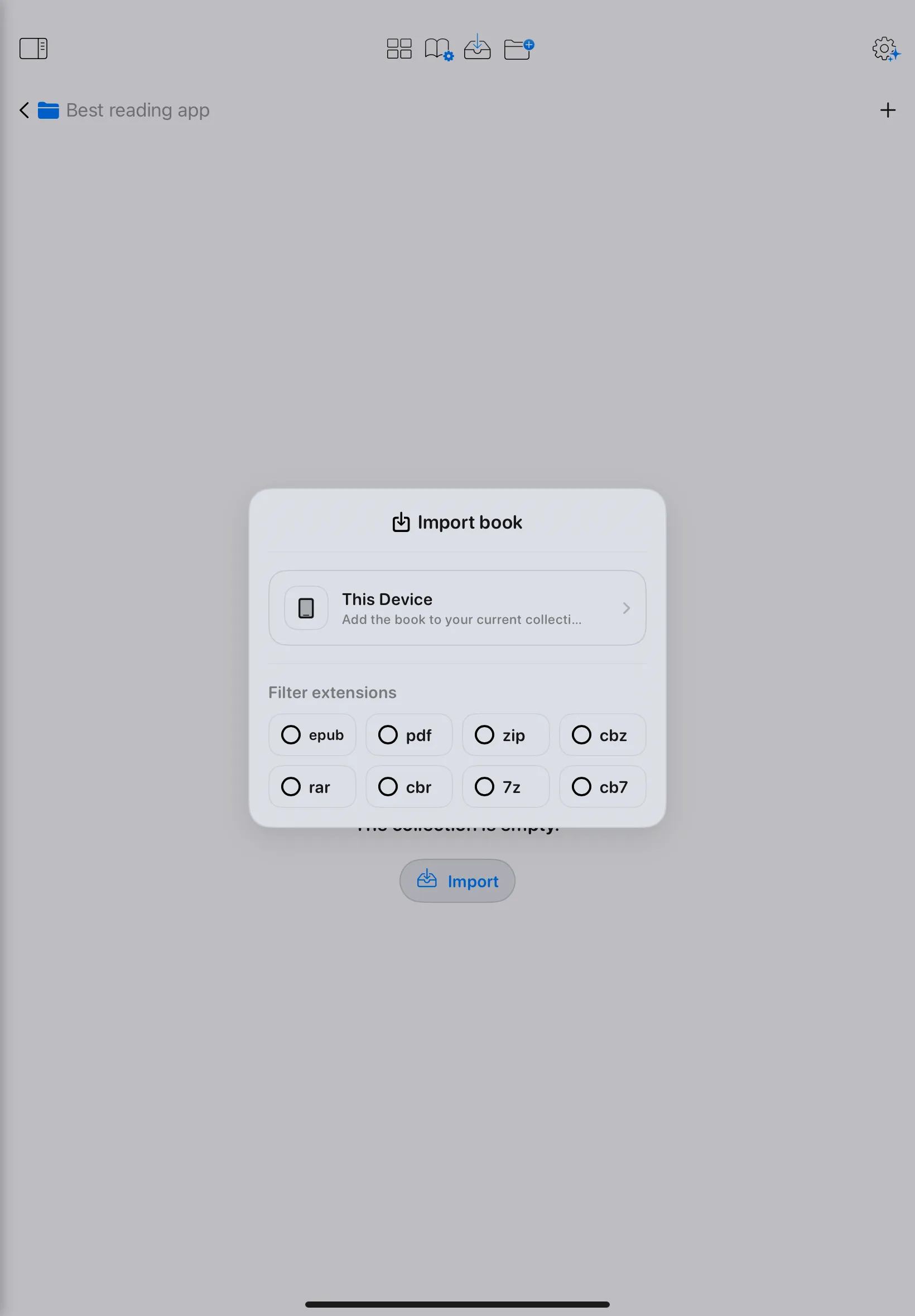
Importing in Andrea Reader is designed to be as simple and fast as possible. With a couple of taps you can bring any file to your library or scan it directly from the camera.
There are three different modes to introduce content into Andrea Reader:
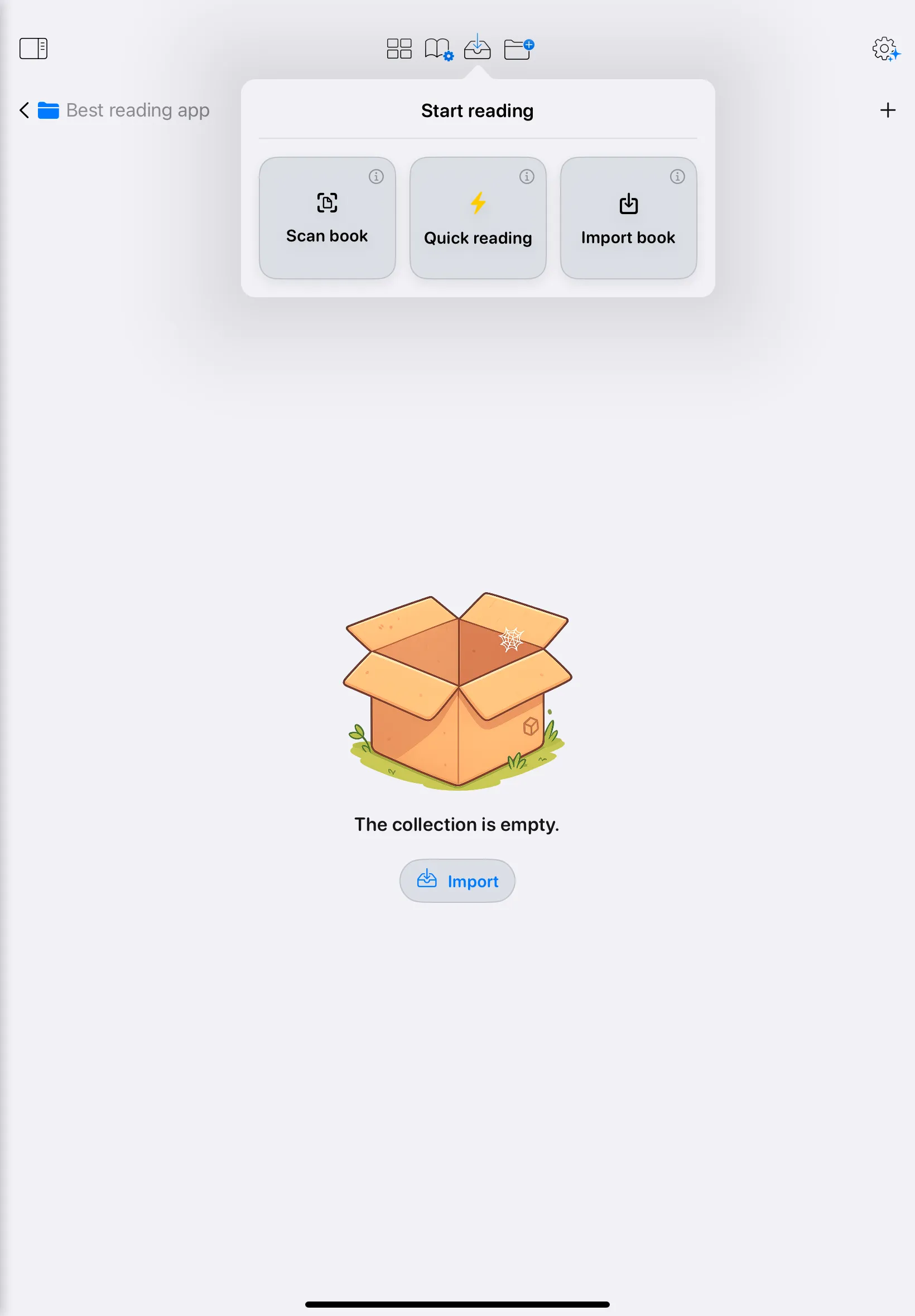
Scan
This functionality allows you to create your own books directly from the camera, without needing any external applications. On a compatible iPhone or iPad, you can generate PDF or CBZ files (the standard format for comics) from photographs or scans.
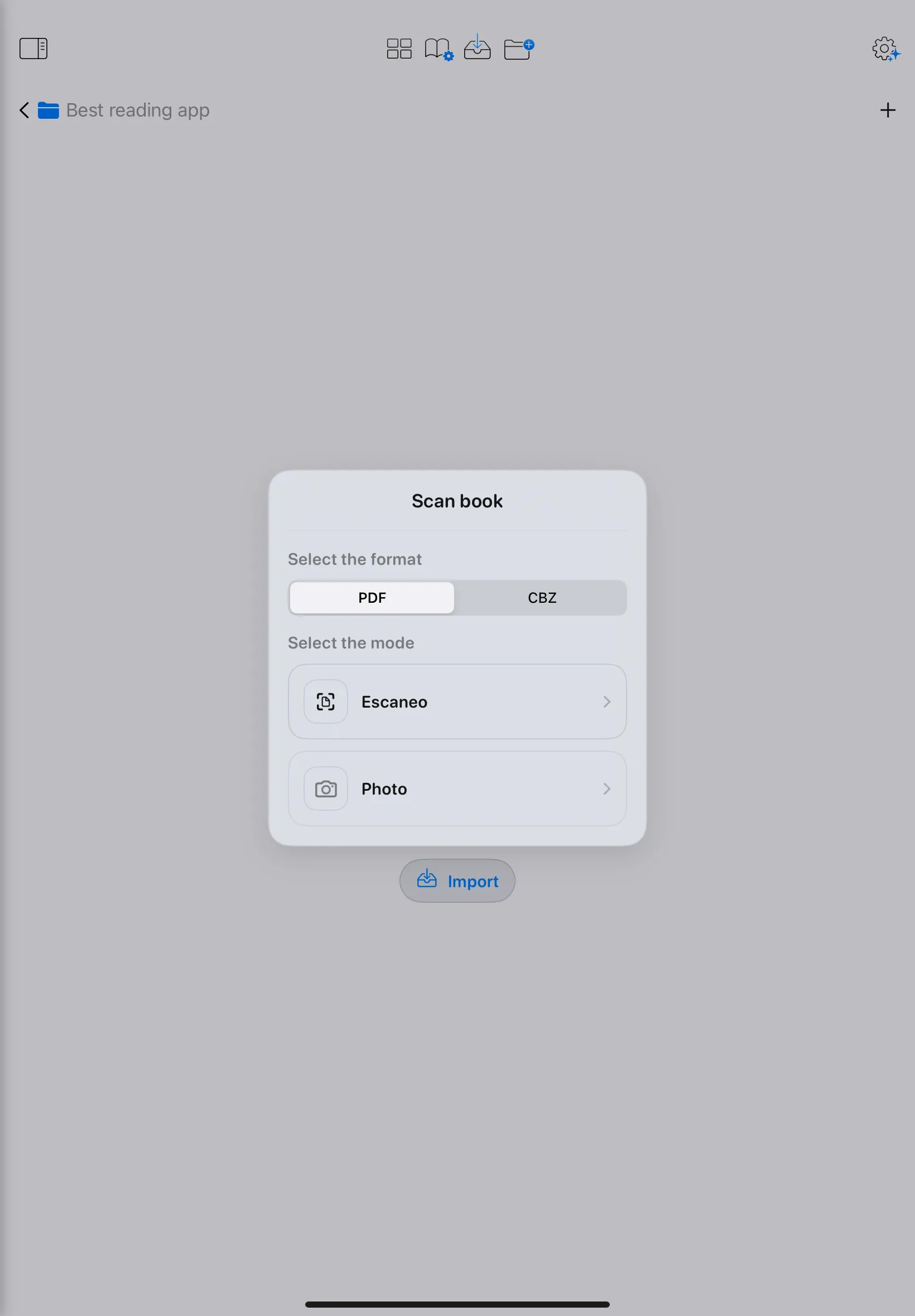
The process follows these steps:
- Format selection: When you activate the function, you choose what type of file you want to create. Currently PDF and CBZ are supported.
- Capture pages: You can choose between two modes:
- Scan — recommended for books and comics; higher quality and automatic perspective correction.
- Photo — available as an alternative if the scan mode doesn't suit your situation.
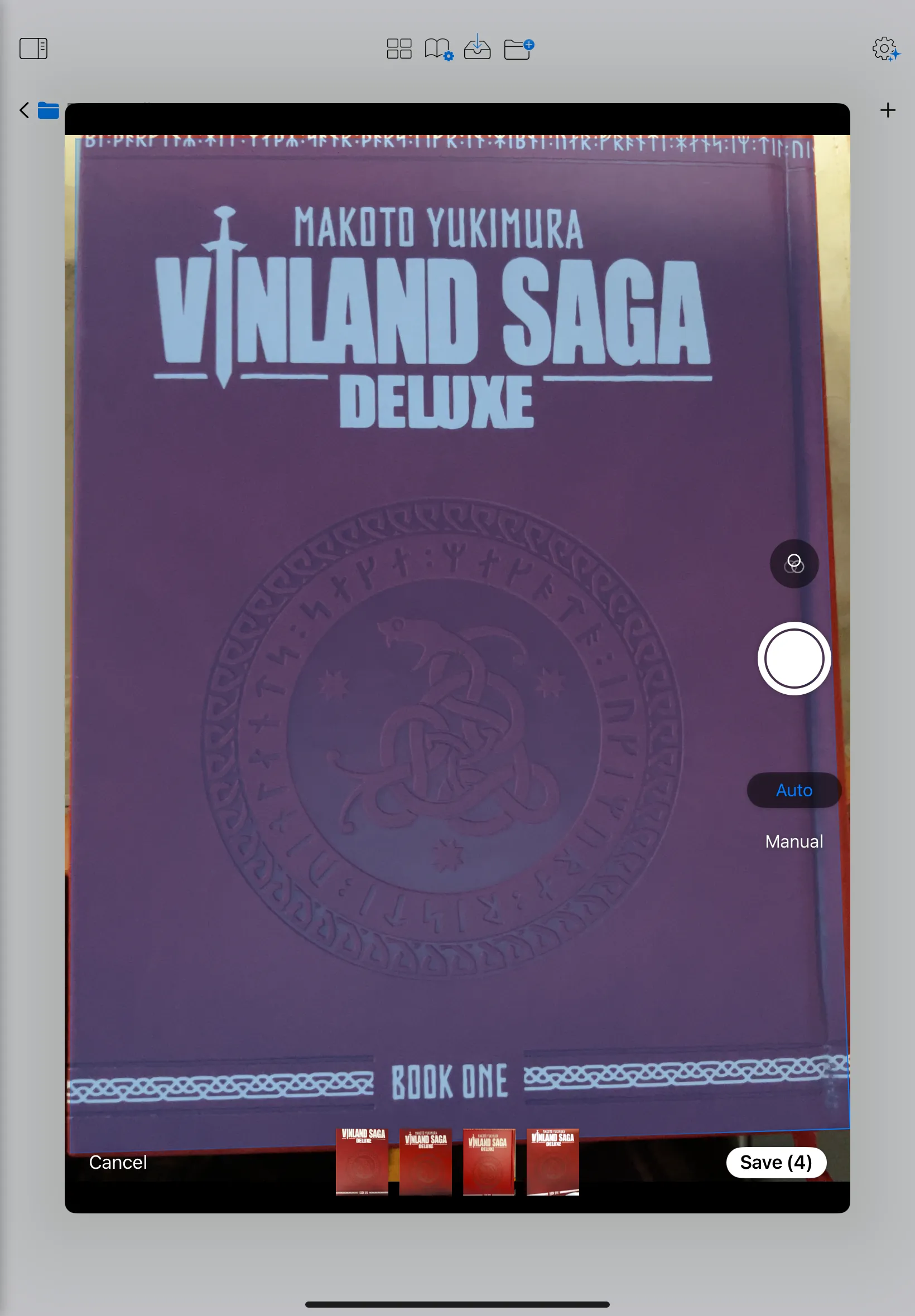
- Real-time editing: The app includes an editor that lets you retouch each page while you capture. Each photo equals one page of the final file.
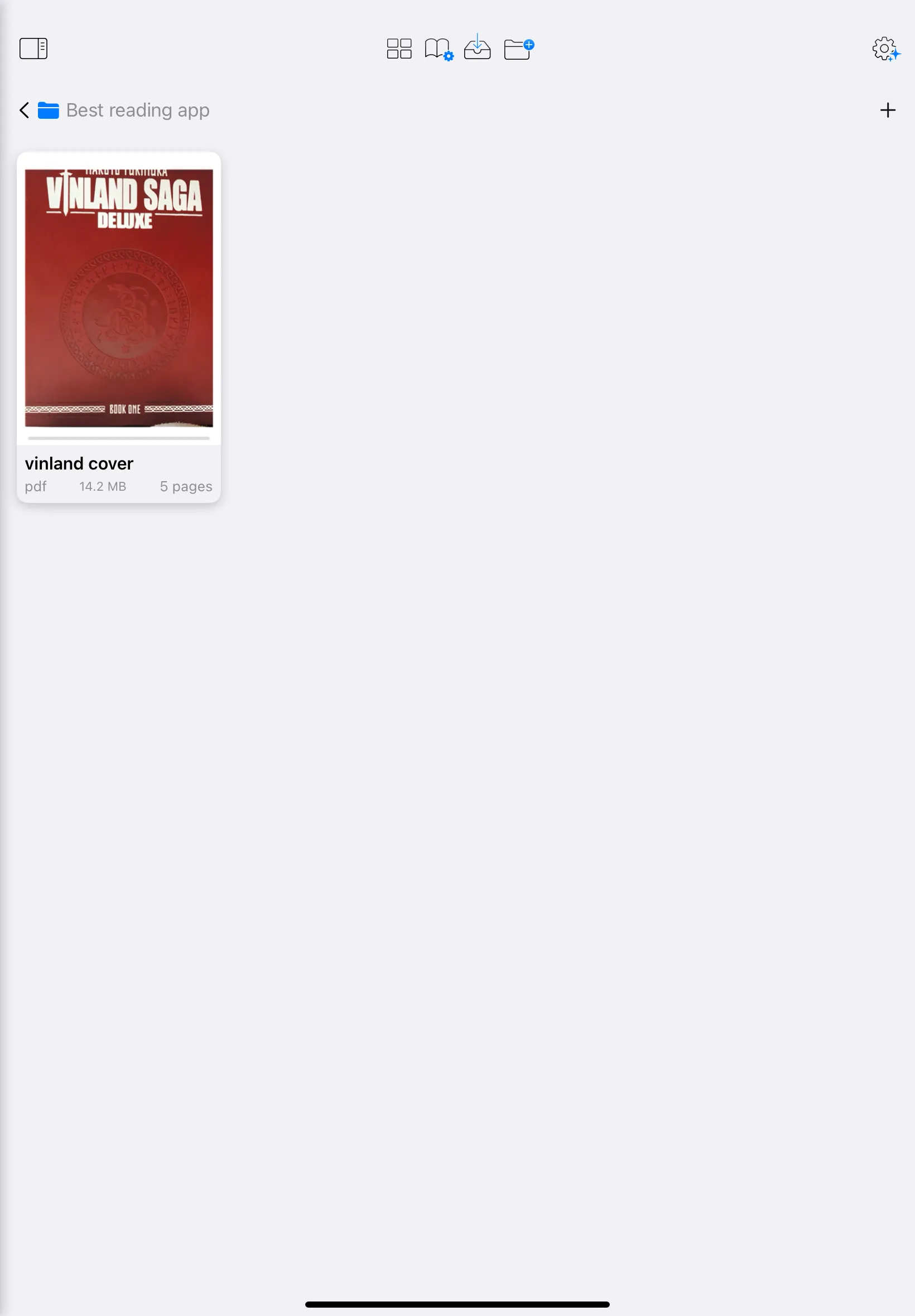
- Save: When you're done, tap save and enter a name for the new file. It will be generated directly in your library, ready to read or share.
Quick Read vs Import Book
When you open a file from outside Andrea Reader, you have two options:
- Import book — the file is permanently added to your library. From that point on you can read it, create statistics about it, organize it in collections, and manage it like any other book.
- Quick read — opens the file temporarily for reading, but doesn't import it. When you close it, it's not saved to your library and doesn't generate any history or statistics.
Supported Formats
Andrea Reader is not limited to books or comics — it handles any kind of personal digital content. The goal is to support every common file format you might find in a personal library.
E-books
- ✓ EPUB
- · AZW3
- · MOBI
- · FB2
- · LIT
- · DJVU
- · ODF
- · RTF
Comics & Manga
- ✓ CBZ
- ✓ CBR
- ✓ CB7
- ✓ CBT
- ✓ ZIP
- ✓ RAR
- ✓ 7Z
- ✓ TAR
Text & Markup
- · TXT
- · MD
- · HTML
- · XML
- · JSON
Image Formats
- ✓ JPEG
- · PNG
- · GIF
- · WebP
- · TIFF
- · SVG
✓ Supported · Planned
What are Sections
Sections are one of the most distinctive features of Andrea Reader. They are not subfolders or simple visual dividers — they are organizational blocks inside a collection that allow you to build much more flexible libraries.
What they are:
- Named and colored blocks that live inside a collection
- Can coexist with loose books outside any section
- Can be placed before, between, or after loose books
Why they matter:
- Let you organize sagas, arcs, priorities, reading lists, or custom groups without touching the actual file structure
- A collection can freely mix sections and loose books
- Not a typical reader system — a much more flexible visual organization
Section Actions
Everything you can do with a section once it exists in your collection.
- Create as many sections as you want
- Rename them
- Change their color
- Reorder them
- View them in both list and grid mode within the same collection
- Drag books into a section
- Remove books from a section
- Move multiple selected books to another section
- Collapse or expand them individually
Layout
A minimalist UI that puts the focus on what really matters: your book covers. Grid and list modes with strong visual presence, adjustable thumbnail zoom in both views, and a dynamic layout that scales covers precisely.
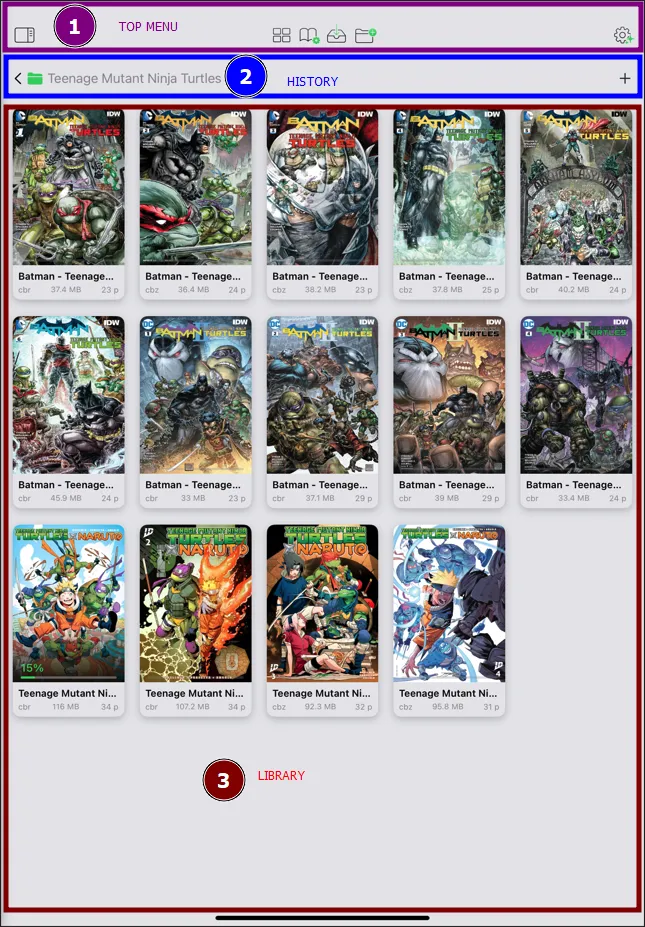
The interface is divided into three zones:
- Top bar — quick-action buttons always within reach: import a book, create a collection, or access the quick settings for your current collection.
- Collection history — two display modes: browser-style tabs or a stacked view. Jump between collections without losing your place.
- Library area — the rest of the screen, fully dedicated to your content. Covers scale beautifully in both grid and list mode.
Note: the top bar and collection history together occupy roughly 10% of the screen, keeping the focus on your books.
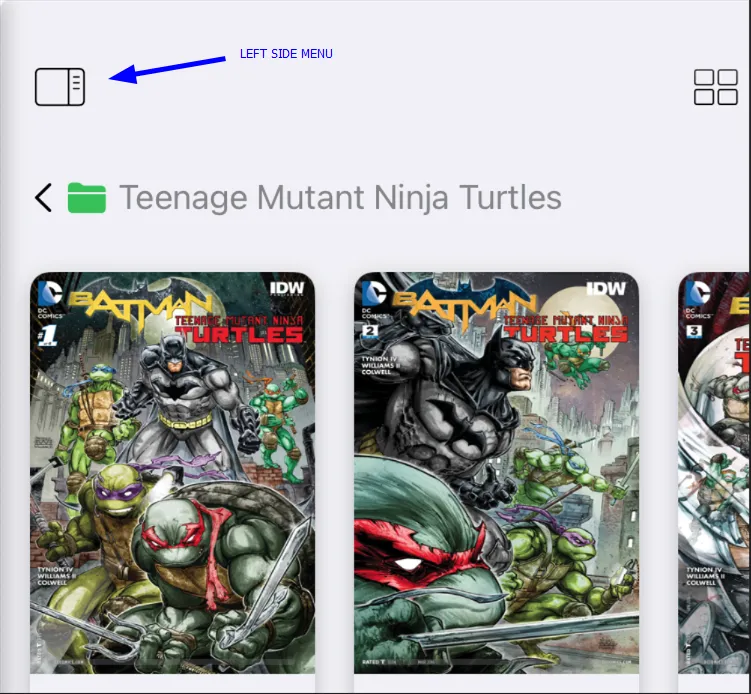
Left Side Menu
Beyond the main library view, Andrea Reader always has a slide-out panel available from the left edge of the screen — always accessible, never in the way.
You can open it in two ways:
- Swipe from the left edge of the screen toward the right
- Tap the button in the top-left corner (visible by default unless you've removed it)
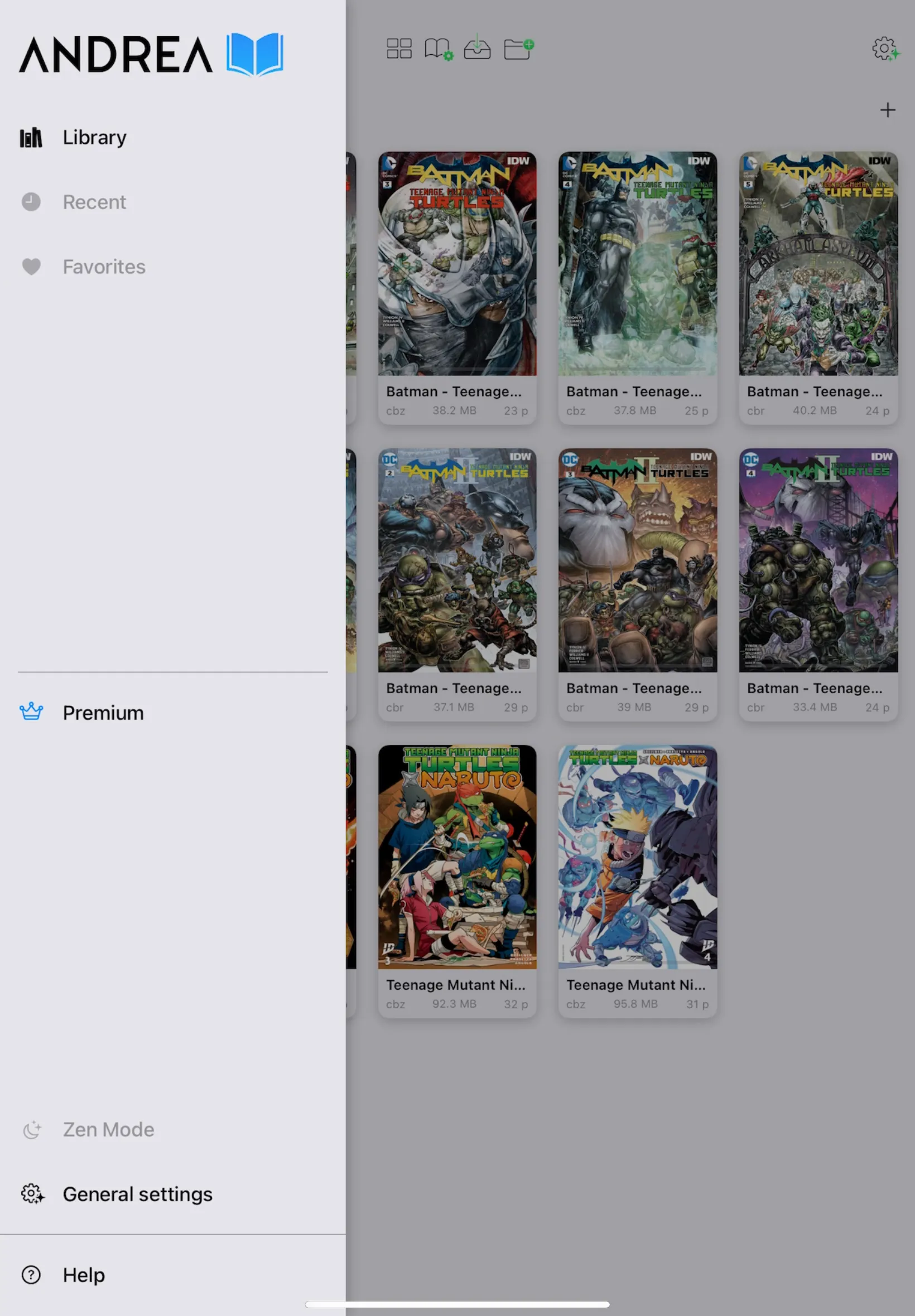
The left side menu shows you where you are and lets you switch between three main views:
- Your main library with all your books
- Your recently opened books
- Your favorites
From here you also get quick access to your Premium account settings, Zen Mode, general app settings, and the help section — everything in one place.
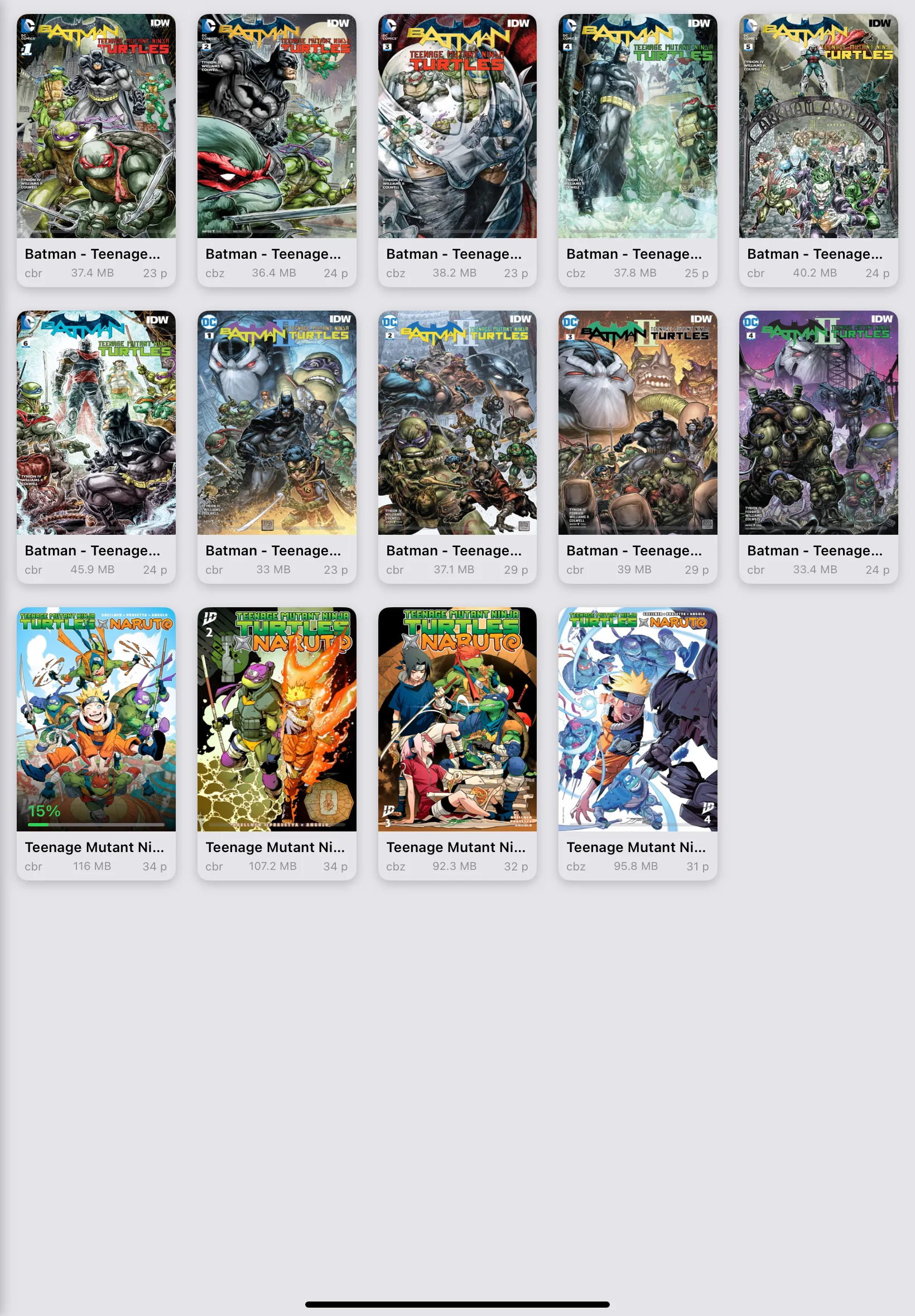
Zen Mode
When you want nothing between you and your library, Zen Mode removes all interface chrome with a single tap — leaving the entire screen to your covers.
Accessible from the left side menu, Zen Mode hides both the top bar and the collection history at once. It also silences notifications so nothing interrupts your session. Tap it again to restore everything.
App Theme
Andrea Reader comes with Light and Dark themes — each available in two tones so you can fine-tune the feel. Light offers a clean white or a softer warm tone; Dark ranges from a deep black to a slightly lifted dark grey.
Beyond the classics, there are four additional alternative themes for a more distinct look — from high-contrast to warmer or cooler palettes. All themes are designed to complement your covers without competing with them.
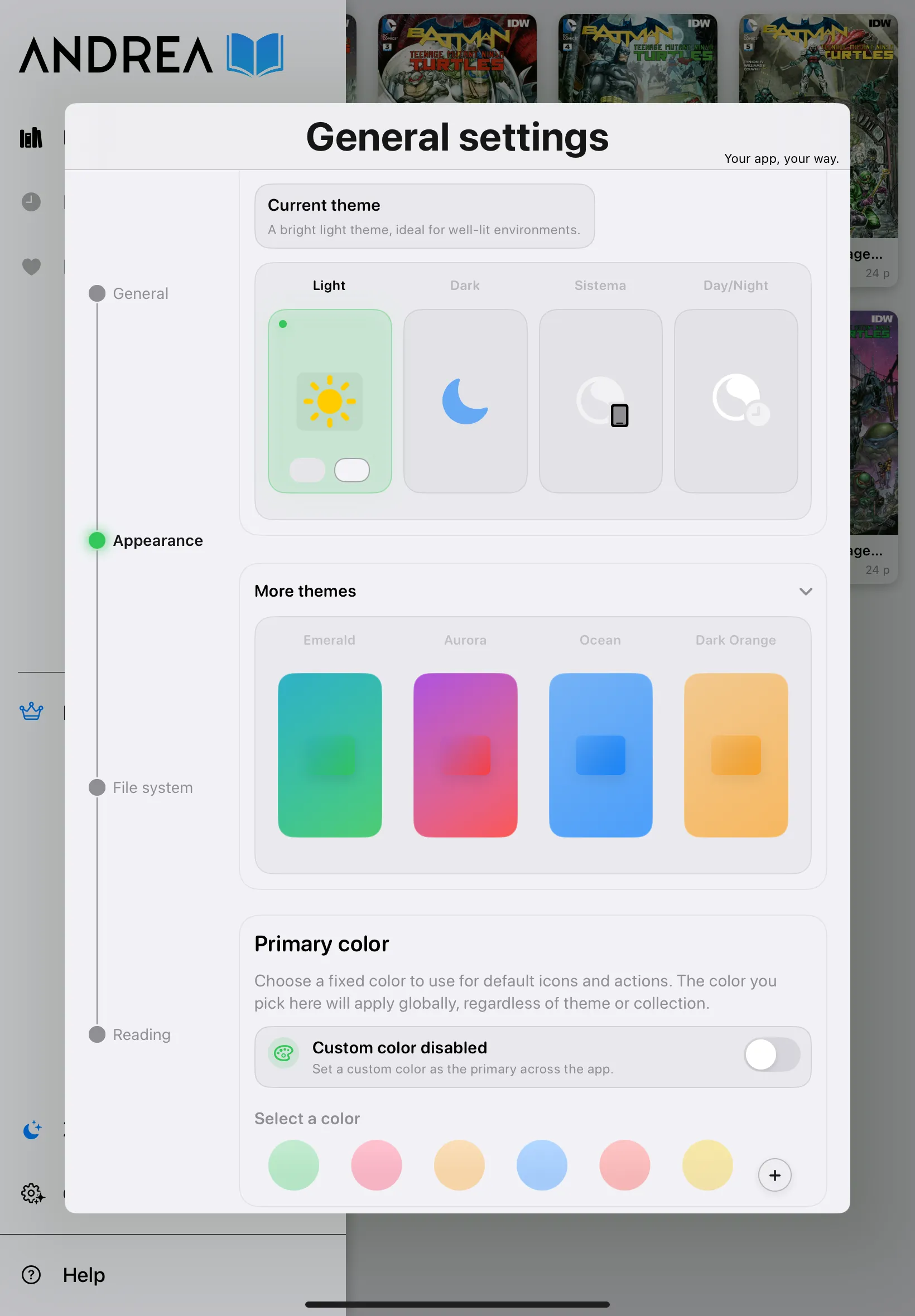
Primary vs Collection Color
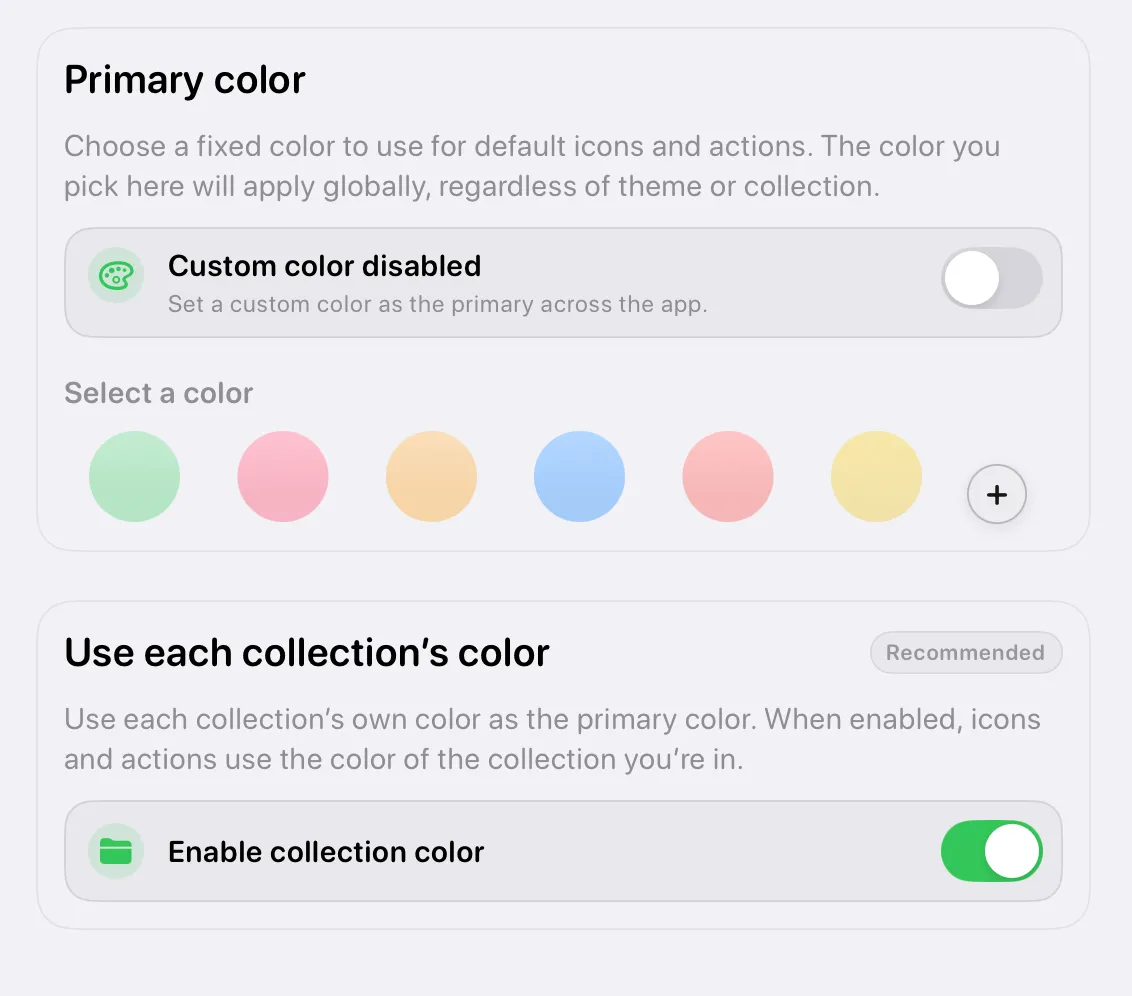
Andrea Reader uses color dynamically throughout the interface — icons, bars, accents, and more all respond to your color settings. There are two ways to control this.
- Primary color — you pick a single color from settings (for example, red), and it applies globally across the entire app at all times.
- Collection color — instead of a fixed color, the app adapts dynamically. As you move between collections, the interface shifts to reflect each collection's own color, making it easy to tell at a glance which collection you're in.
Both options affect the same set of UI elements — the difference is simply whether the color is static or tied to your current collection.
UI Customization
Every section of the layout has its own appearance settings so you can adjust each part of the interface independently — no global overrides that affect everything at once.
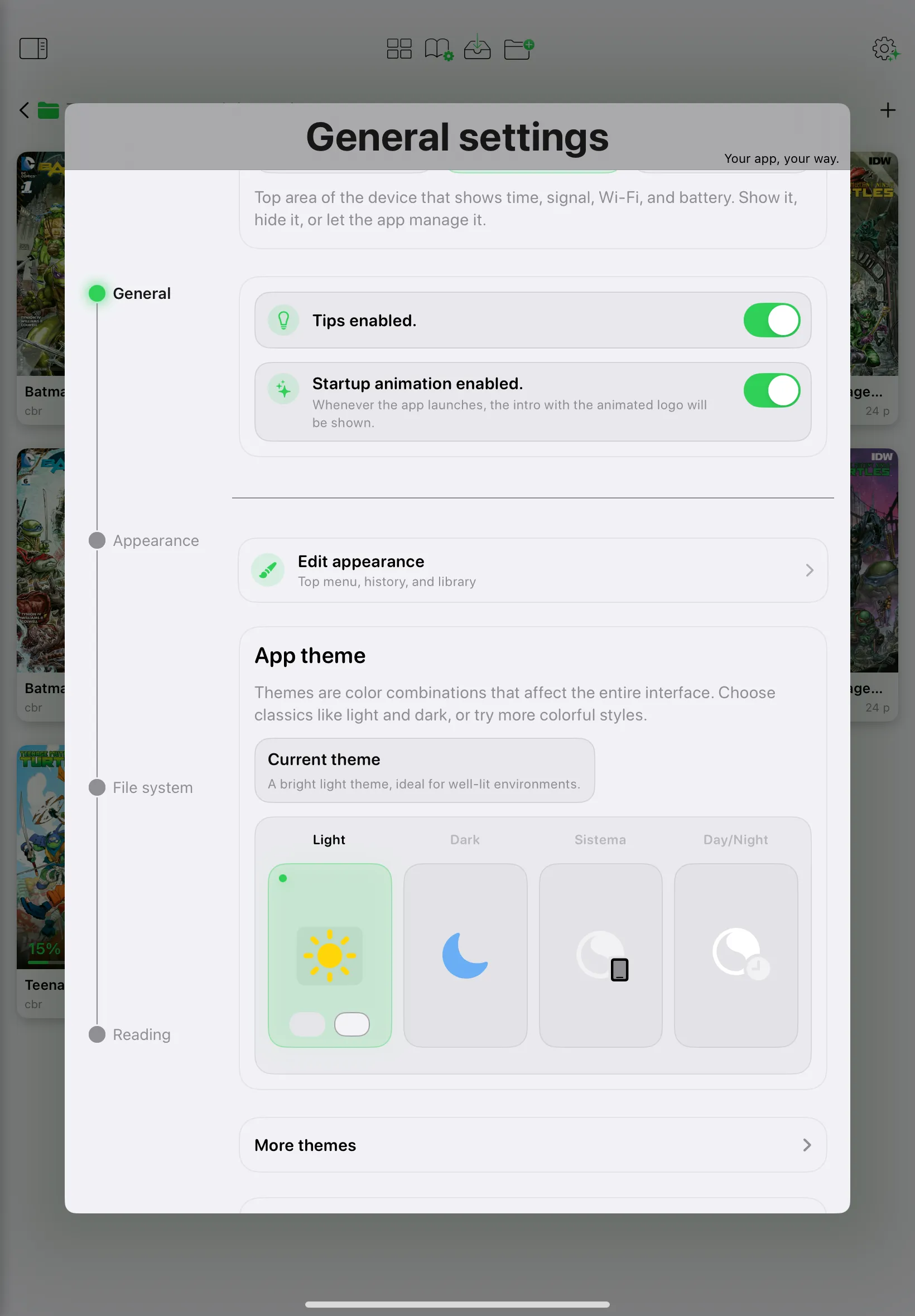
From general settings, go to Appearance → Edit Appearance to open a dedicated view where each UI zone can be customized on its own.
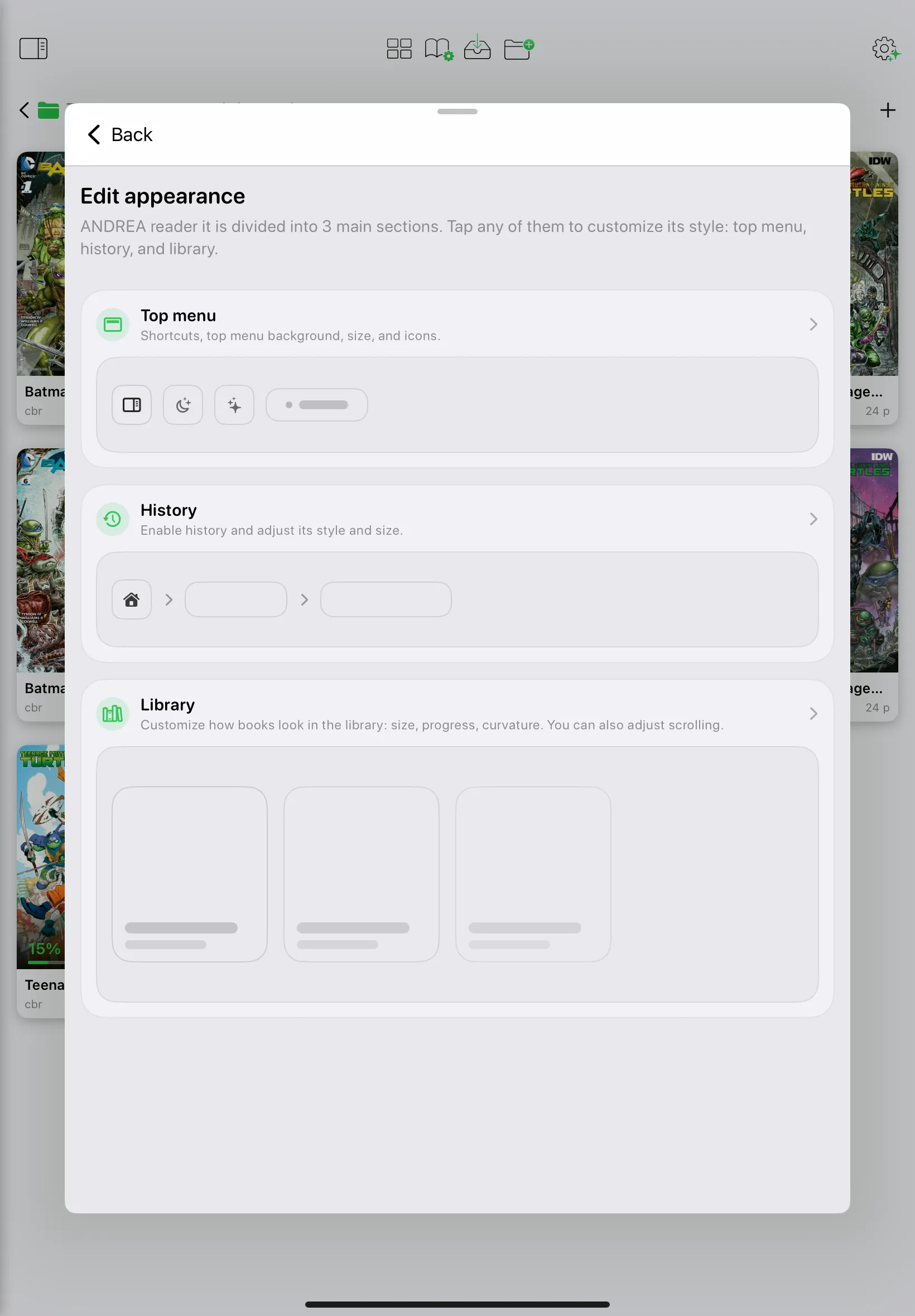
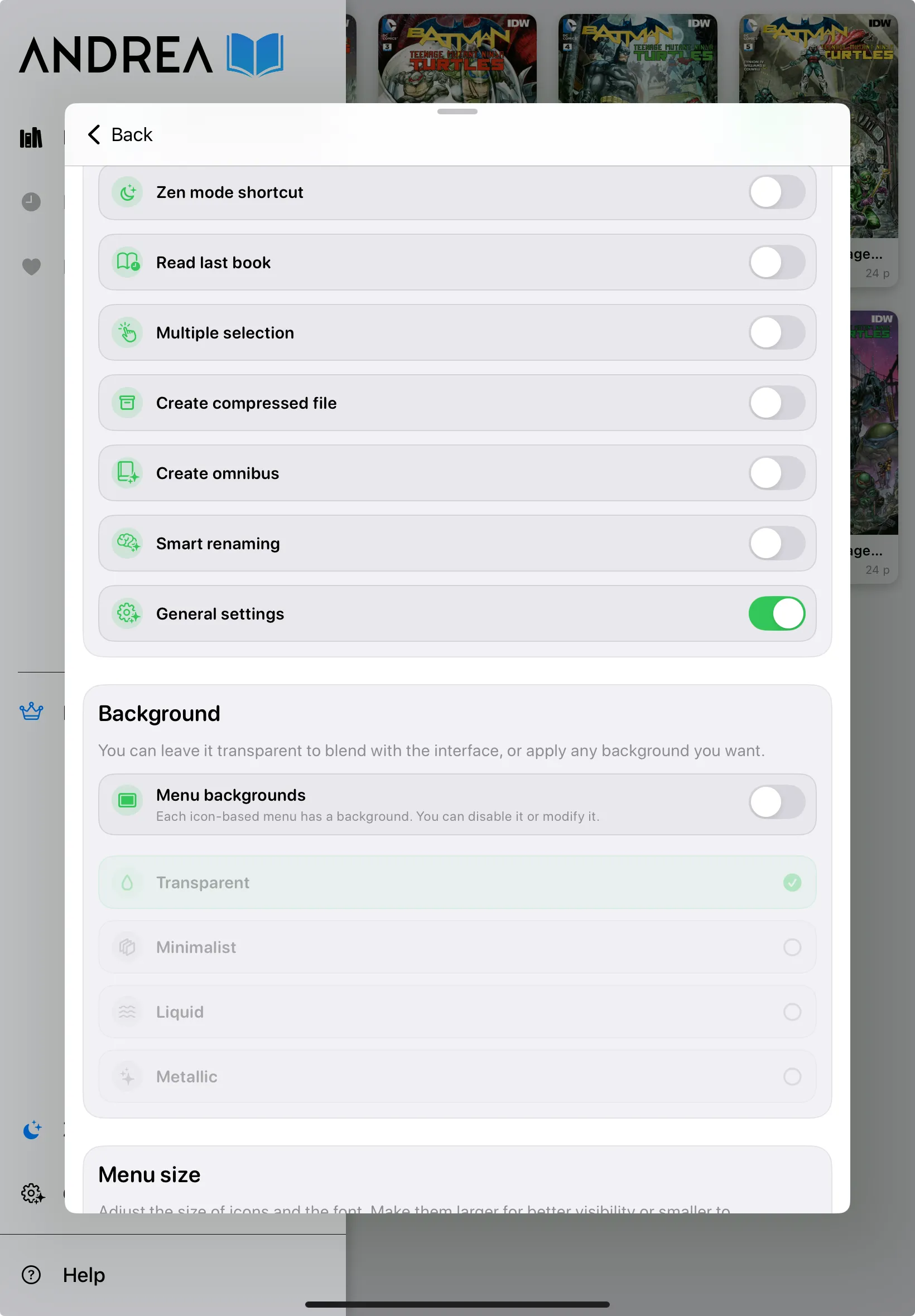
For example, you can fully customize the top bar: resize icons, change the background and font, add shortcuts to frequently used features, or remove buttons you don't use for a cleaner look.
The collection history and library area have their own independent appearance settings as well — the same level of control applied to each zone separately.
Traditional Navigation
The standard entry point: navigate into collections and subcollections one level at a time, just like entering folders.
Simple and intuitive for smaller libraries, or whenever you know exactly where to find what you're looking for.
Sidebar Navigation Modes
The sidebar offers two structural views of your entire library without having to drill into each collection individually.
- Hierarchical list — shows the full recursive structure with visible nesting, so you can see your entire library's depth at a glance
- Linear list — flattens all collections into a single continuous list, even if they are nested internally. Ideal for moving fast when depth doesn't matter
Switching between these takes one tap. Both modes give you direct access to any collection without navigating level by level.
Quick Access Mode
Collections are hidden from the main library view — only files are shown directly. The sidebar becomes the sole navigation surface for the collection structure.
Less visual noise, faster access to content. Useful when you want to browse files directly without the overhead of the collection layer in the main view. Andrea Reader is one of the very few reading apps to offer this kind of navigation flexibility.
Customization — Collections
Each collection stores its own visual and functional configuration independently from the rest.
- List or grid view per collection
- Element size per collection
- Sorting and filtering per collection
- Progress visible as bar or number
- Card and section corner radius
- Collection color
- Cover thumbnail: base image, first page, random page, or custom image
- Shared thumbnail for all books in a collection
- Visual style: folder or book fan
- Extra icon inside the folder
The app is designed so each user can adapt the experience entirely to their taste.
Customization — Reading
Reading settings are configured per format and can be saved as reusable presets.
- Automatic defaults per format
- Orientation, screen lock, invert, zoom, margins, spacing, brightness, and background
- Configurable navigation and gestures
- Page turn transitions
- Ephemeral overlay showing page and percentage
- Advanced typography controls for EPUB
Customization — App-wide
Global settings that shape the entire app experience across all collections and formats.
- Themes and colors
- Icons and icon size
- Shadows, animations, and backgrounds
- Menu style
- Search bar behavior
- Collection history behavior
- Language switching in real time from inside the app (13 languages)
- Dynamic color — parts of the UI adapt to the current collection color
Create Omnibus
Combine multiple books into a single unified file with full control over the structure.
Reorder books before merging, reorder pages within each book, remove specific pages, and generate the final output file. Useful for building custom collected editions, combining manga volumes, or cleaning up split archives — all without leaving the app.
Smart Rename
Batch rename files using regex rules to normalize any naming convention in a single operation.
Clean up inconsistent file names, strip prefixes, normalize series numbering, or transform filenames in bulk. The regex engine makes it precise enough to handle even chaotic naming patterns from different sources.
General Library Tools
A complete set of library management actions that go well beyond reading.
- Multi-selection with custom actions
- Move, copy, rename, and reorganize books and collections
- Share files
- Open items in the Files app
- View advanced file information
- Reset reading statistics
- Create archive — generate a compressed archive from selected items and share it directly
Reading Settings Manager
A preset system and centralized manager so you never have to reconfigure books manually.
- Create settings from scratch
- Save your own presets
- Use predefined presets
- Apply settings to a single book
- Apply settings to a whole collection
- Manage reading settings for all your collections from a single centralized view — easily apply settings to each collection from one place
Reader Features
The reading experience across all supported formats from a single unified reader.
- One reader for multiple file types
- Reading menu with quick access to settings, chapters, page grid, and thumbnail strip
- Navigate by percentage and progress
- Favorite pages
- Notes
- Reading history
- Bookmarks
- Last opened books
- In-app book information and statistics
Statistics — Levels
Statistics are tracked at three levels simultaneously so you always have the right view.
- Per book
- Per collection
- Per section
Statistics — Data Points
Real reading data collected across your entire library, not just basic progress tracking.
- Progress
- Reading sessions
- Time read
- Estimated time remaining
- Pages read
- Favorite pages
- Reading speed
- Most visited pages
- Time per page
- File type distribution
- File and collection size